Event Portal User Guide
How to register, log in, add guests, bulk upload guests and check your previous year guests.
Getting started
The Event Portal is where MNK Group staff add and track the guests they invite to the annual event. Open it at groupmnkevents.com in any web browser.
- Who can use it: staff with an MNK Group of Companies email address (mnkre.com, mnkgcs.com, mnkintl.com, groupmnk.com, specialty-mga.com, specialtymgauk.com).
- What you need: your work email and your Microsoft work account (the one you use for Outlook and Teams).
- First time? Register once (section 1), then log in with Microsoft (section 2). There is no approval step.
- What you will see: only the guests you invited, this year and last year.
1. Register an account
You register once. Your account is ready straight away, with no waiting for approval.
Go to the portal and click Register under the Microsoft button.
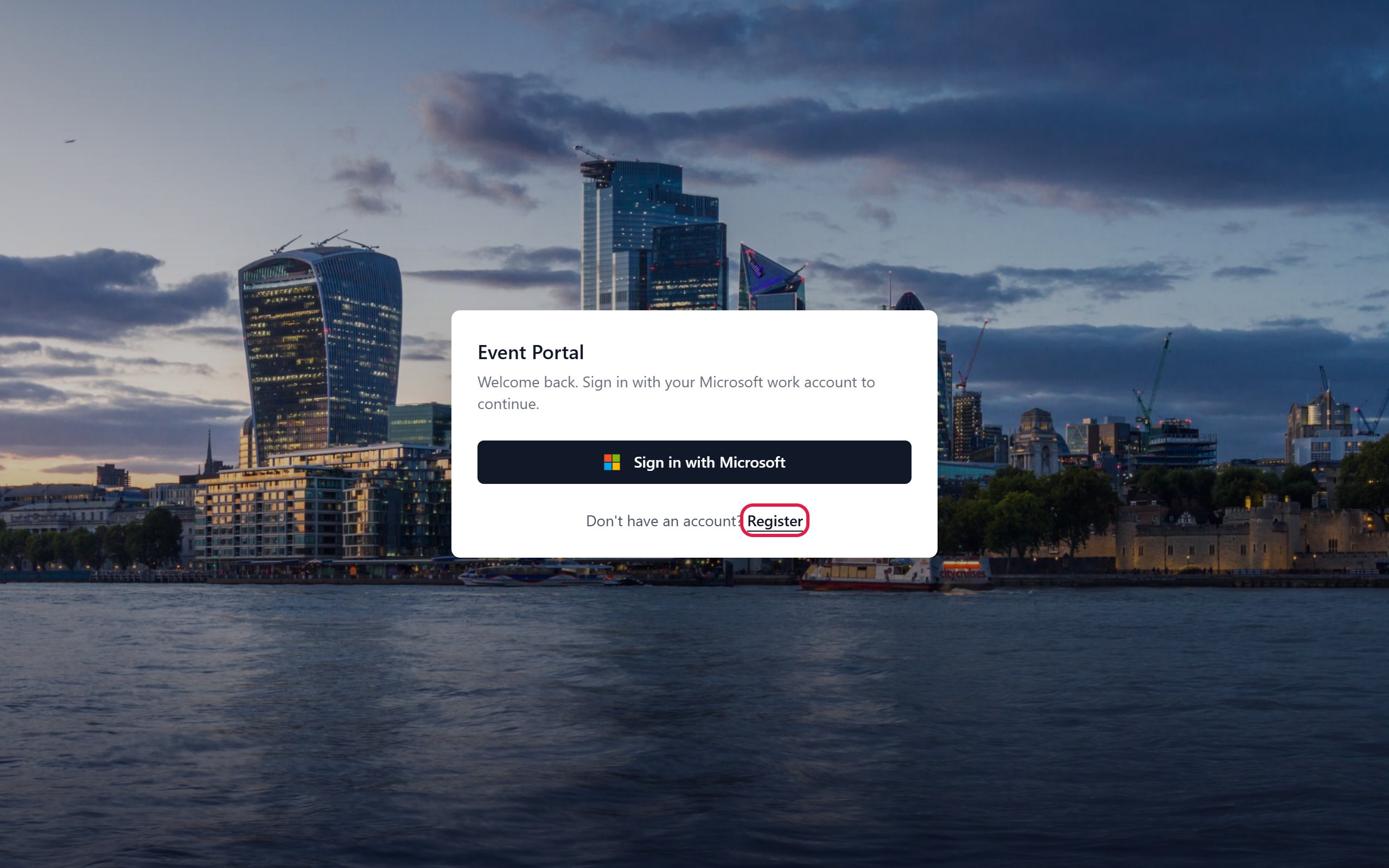
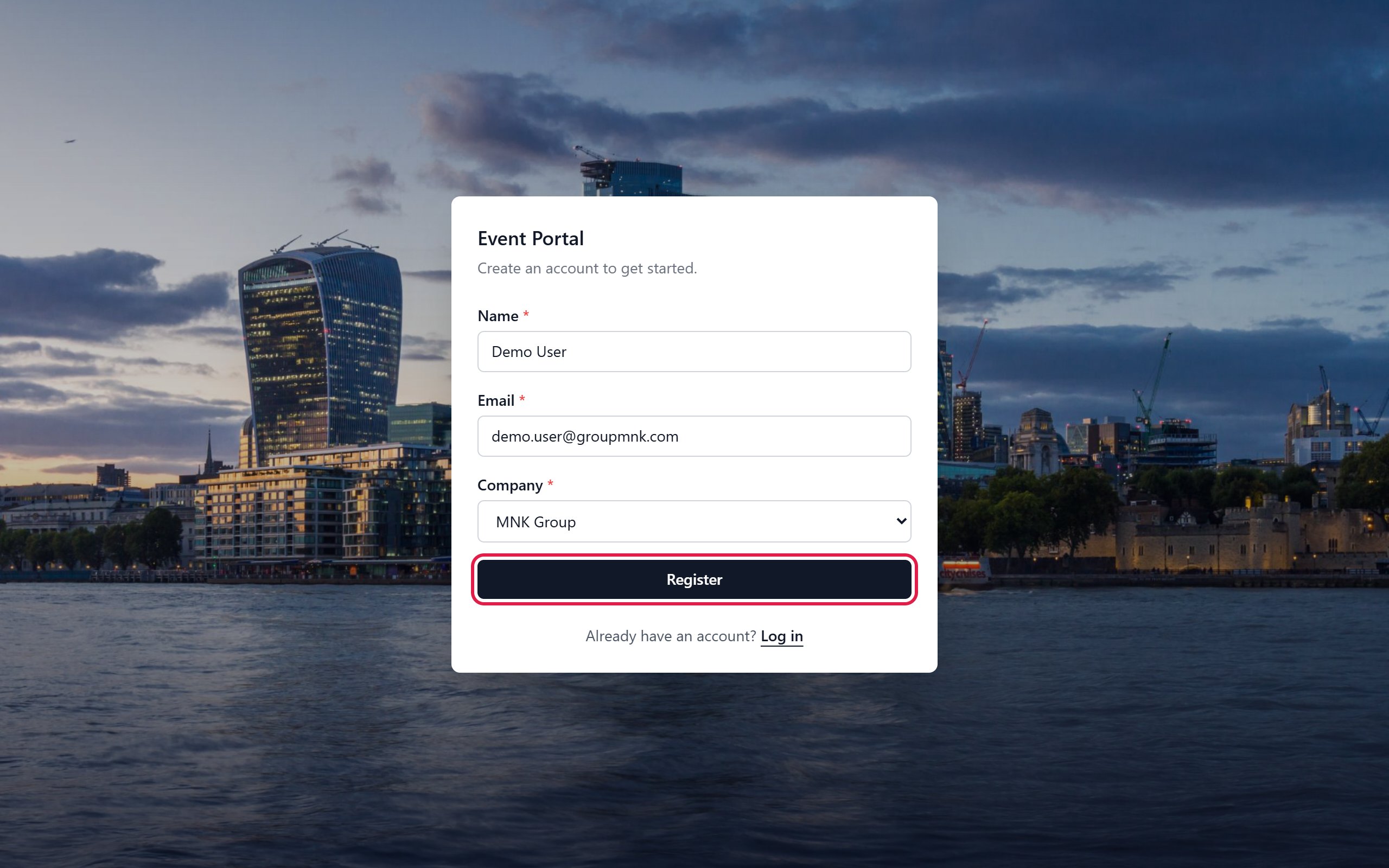
Fill in the form, then click Register.
- Name: your full name.
- Email: your MNK work email address.
- Company: the MNK company you work for.
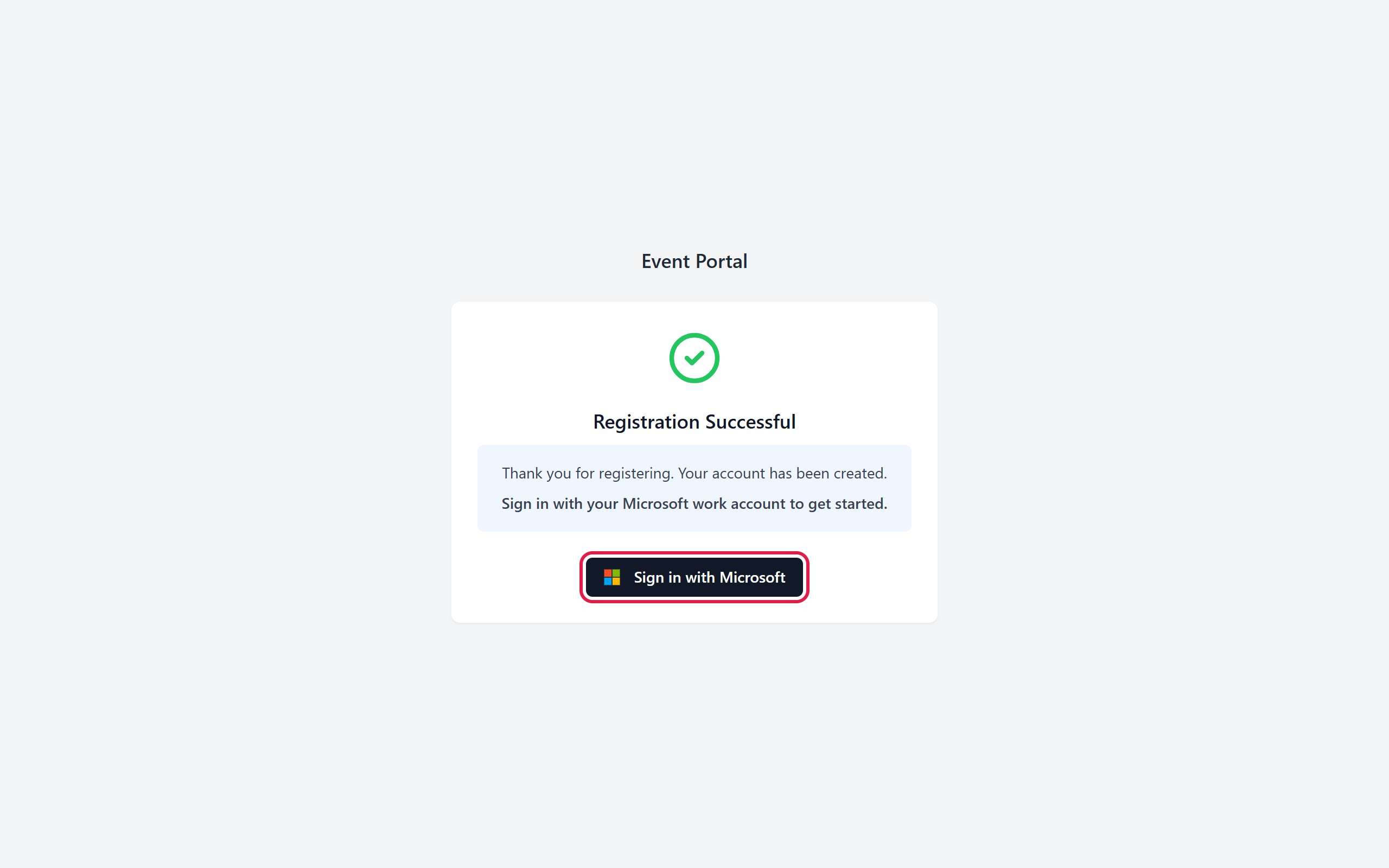
You will see Registration Successful. Click Sign in with Microsoft to go straight in (see section 2, step 2).
2. Log in with Microsoft
After registering, you log in with your Microsoft work account. There is no separate portal password to remember.
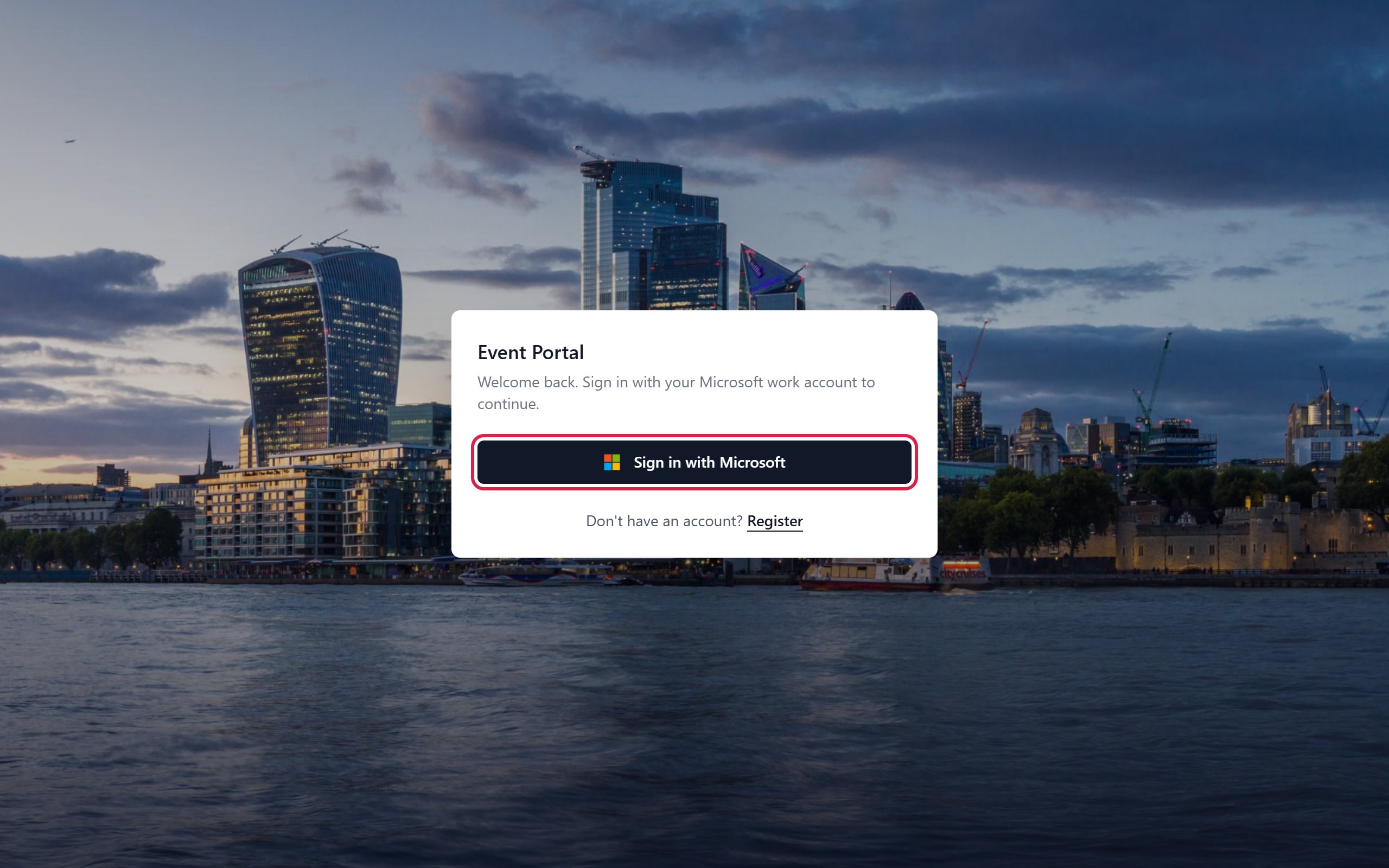
Go to the portal and click Sign in with Microsoft.
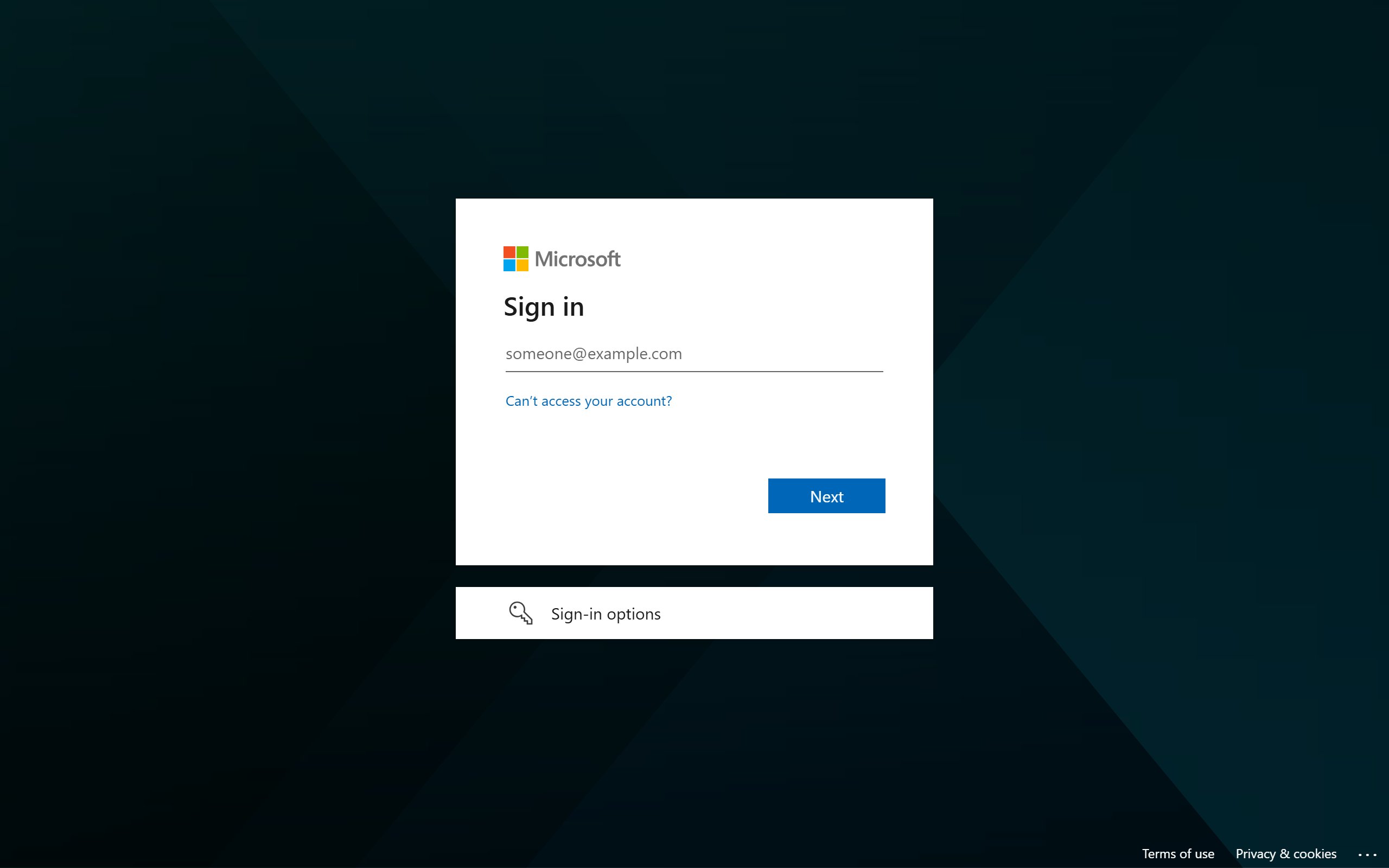
On the Microsoft page, enter your work email, click Next, then enter your Microsoft password. If you are already signed in to Outlook or Teams in this browser, Microsoft may only ask you to pick your account.
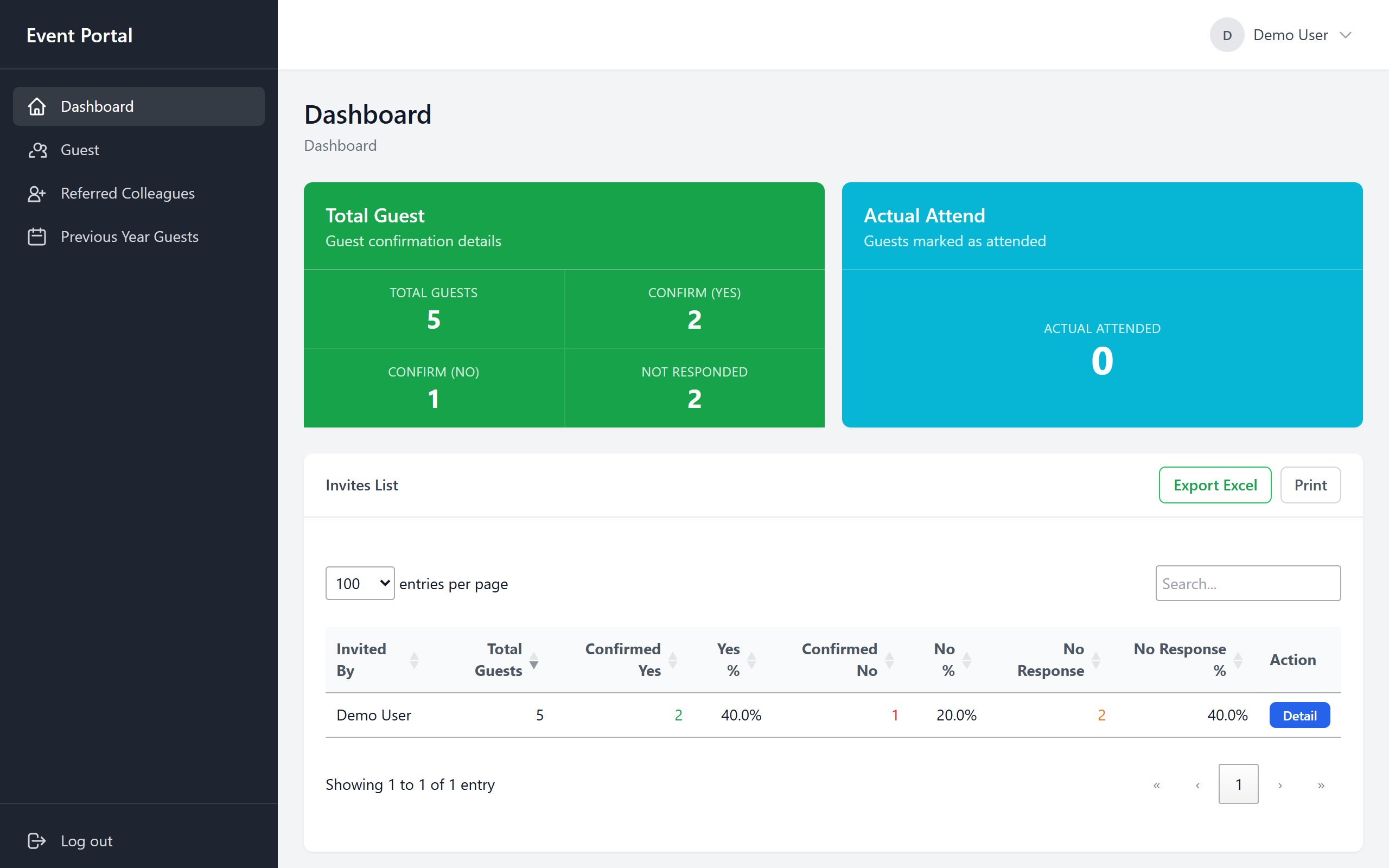
You arrive on the Dashboard. It shows how many guests you have invited and how many have said yes, said no or not replied yet. The menu on the left takes you to everything else.
3. Add a guest
Use Add Guest for one guest at a time. For a long list, use Bulk Upload (section 4).
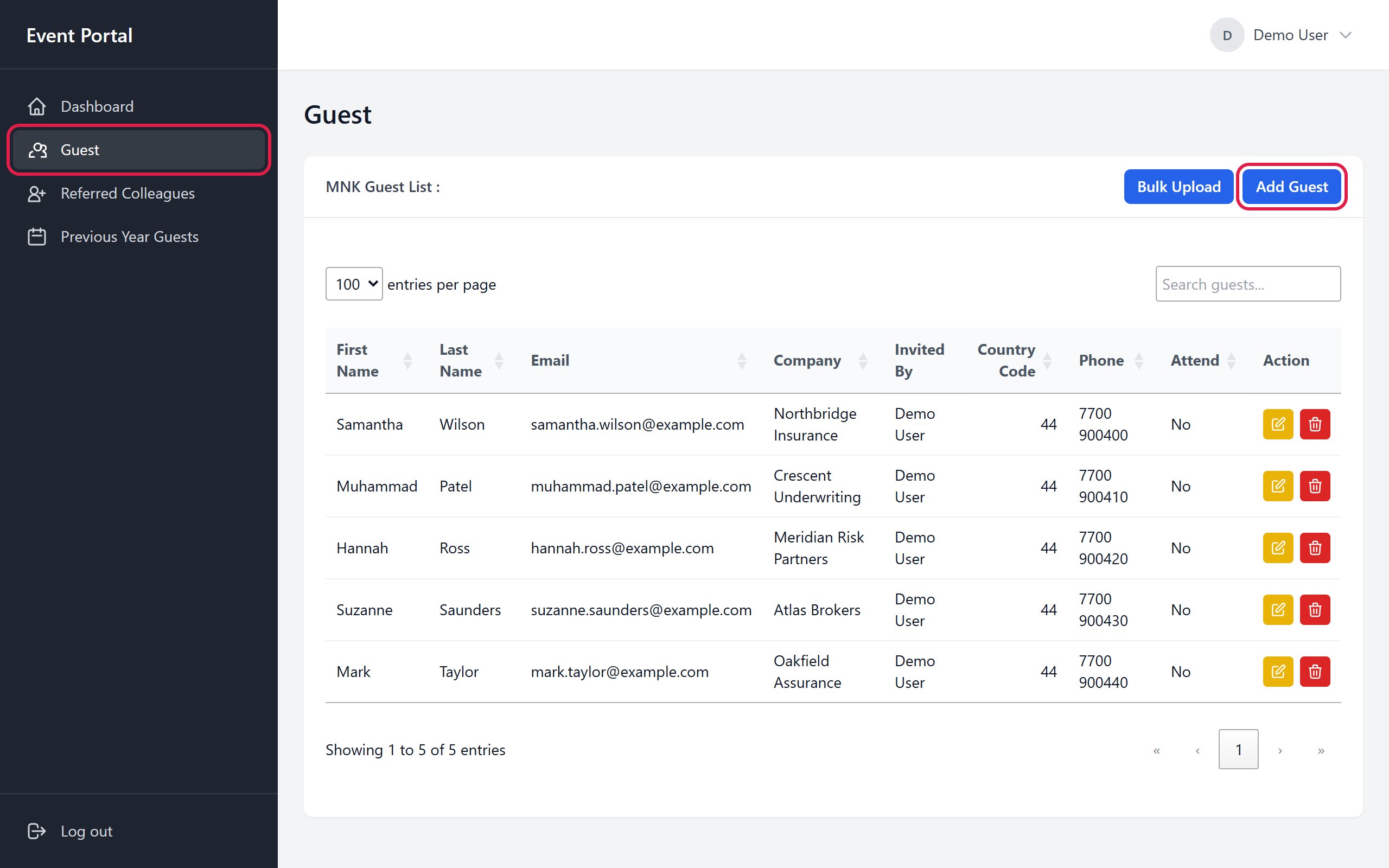
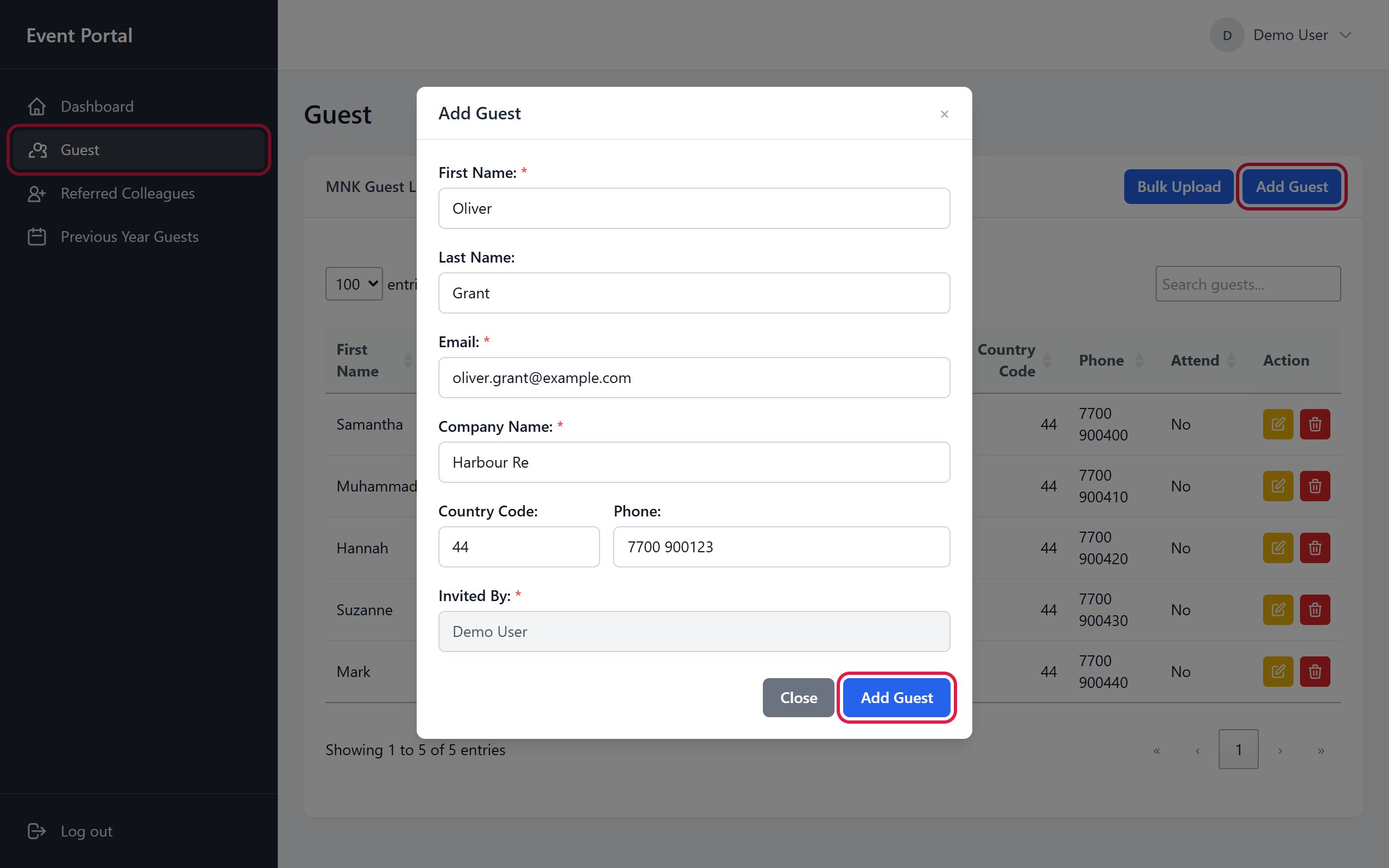
Click Guest in the left menu, then click Add Guest at the top right of the list.
Fill in the form, then click Add Guest.
- Required: First Name, Email and Company Name (marked with a red *).
- Optional: Last Name, Country Code (for example 44) and Phone.
- Invited By is filled in with your name automatically.
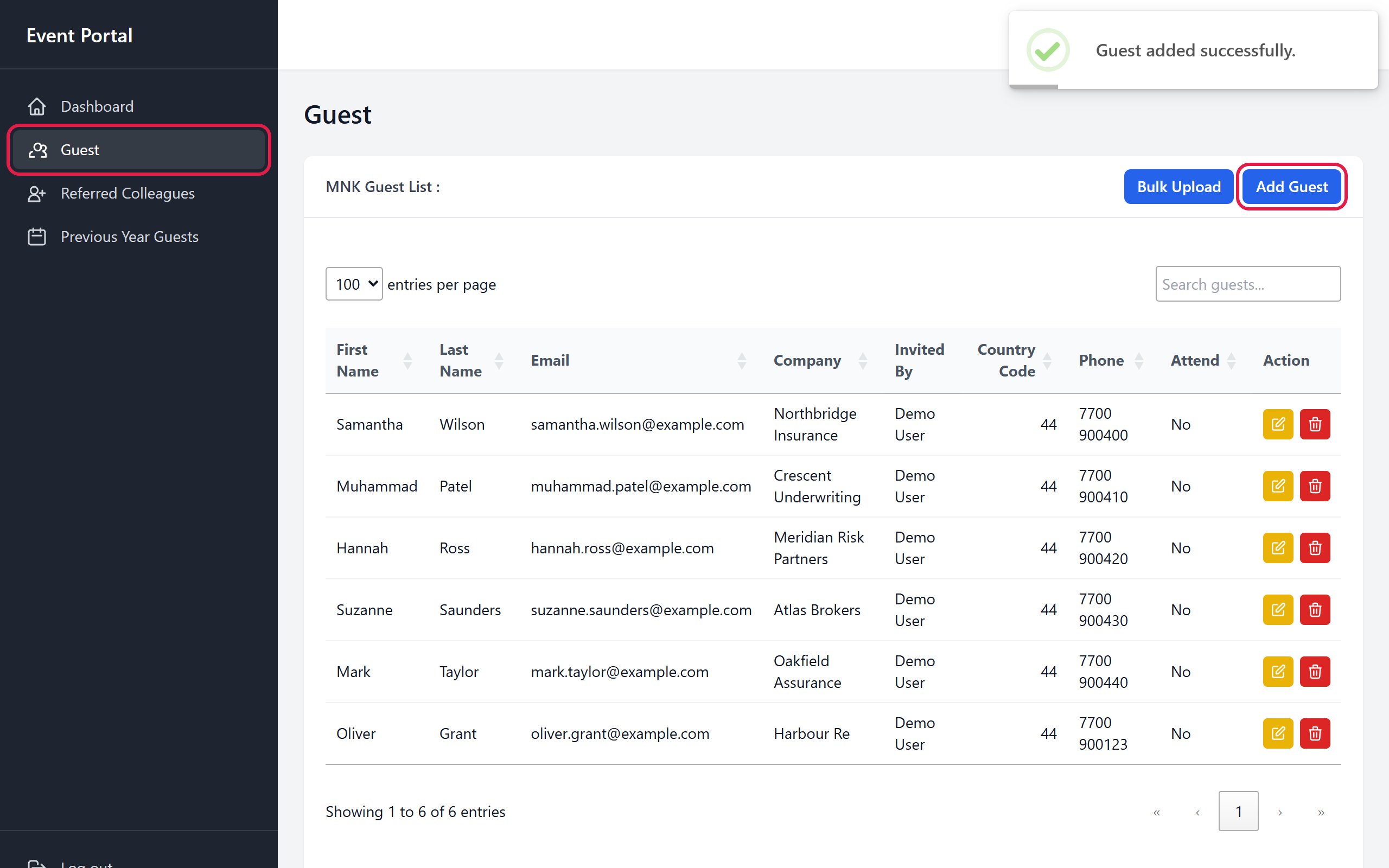
A Guest added successfully message appears and the guest is added to your list. To change a guest, click the yellow pencil button on their row; to remove them, click the red bin button.
4. Bulk upload guests
Bulk Upload adds a whole list of guests from one CSV or Excel file (.csv, .xlsx or .xls, up to 10 MB).
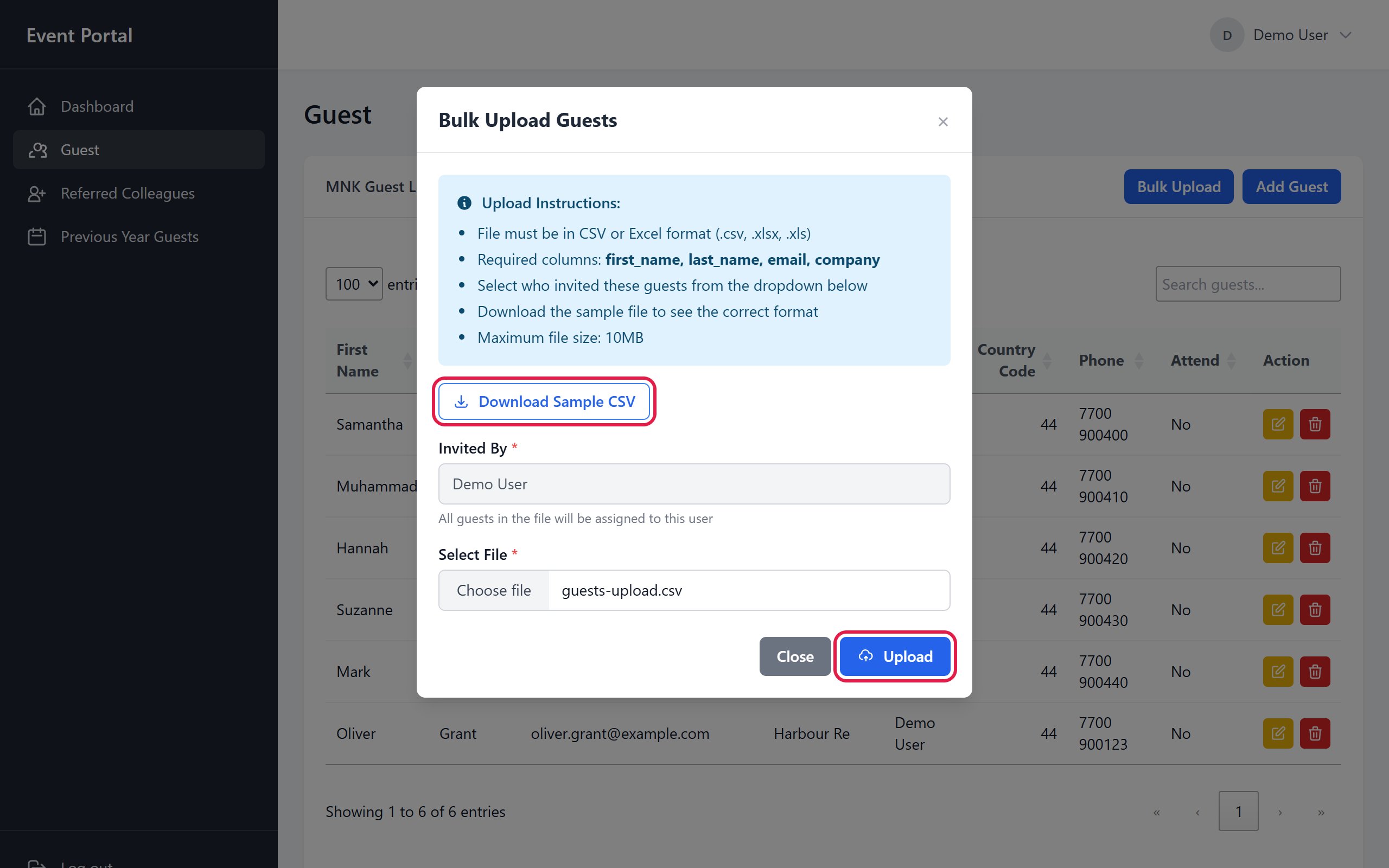
Click Guest in the left menu, then click Bulk Upload at the top right of the list.
Click Download Sample CSV and open the file in Excel. Keep the first (heading) row exactly as it is, and replace the example rows with your guests, one guest per row. Every row needs all four columns:
first_name,last_name,email,company
John,Doe,john.doe@example.com,Specialty MGA
Jane,Smith,jane.smith@example.com,MNK Group
Save the file. Back in the Bulk Upload Guests window, click Choose file, pick your file, then click Upload. Invited By is filled in with your name, so every guest in the file is added as yours.
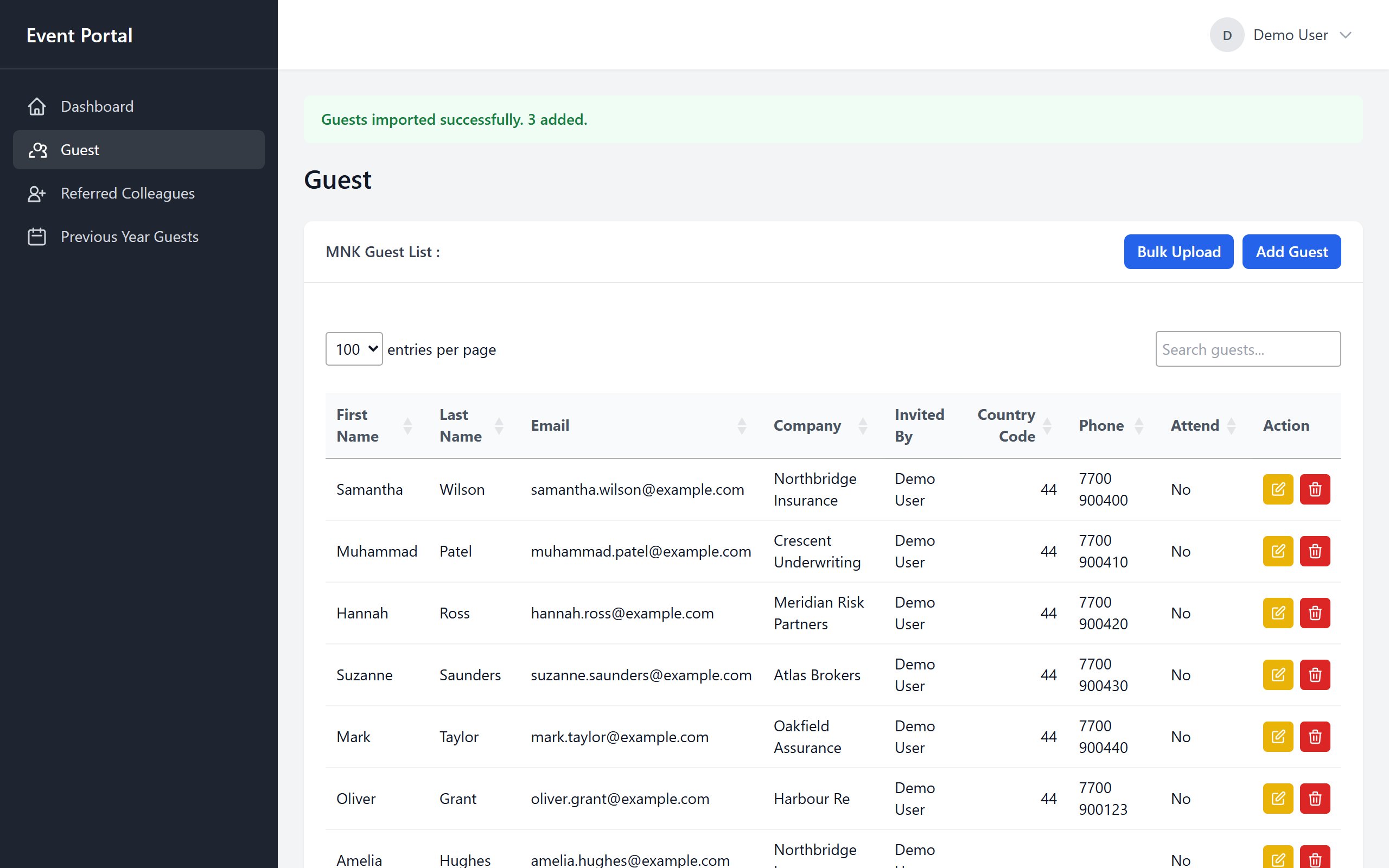
A green message confirms how many guests were added, and they appear in your list. Any guest whose email is already on the guest list is skipped, so nobody is added twice.
5. Check your previous year guests
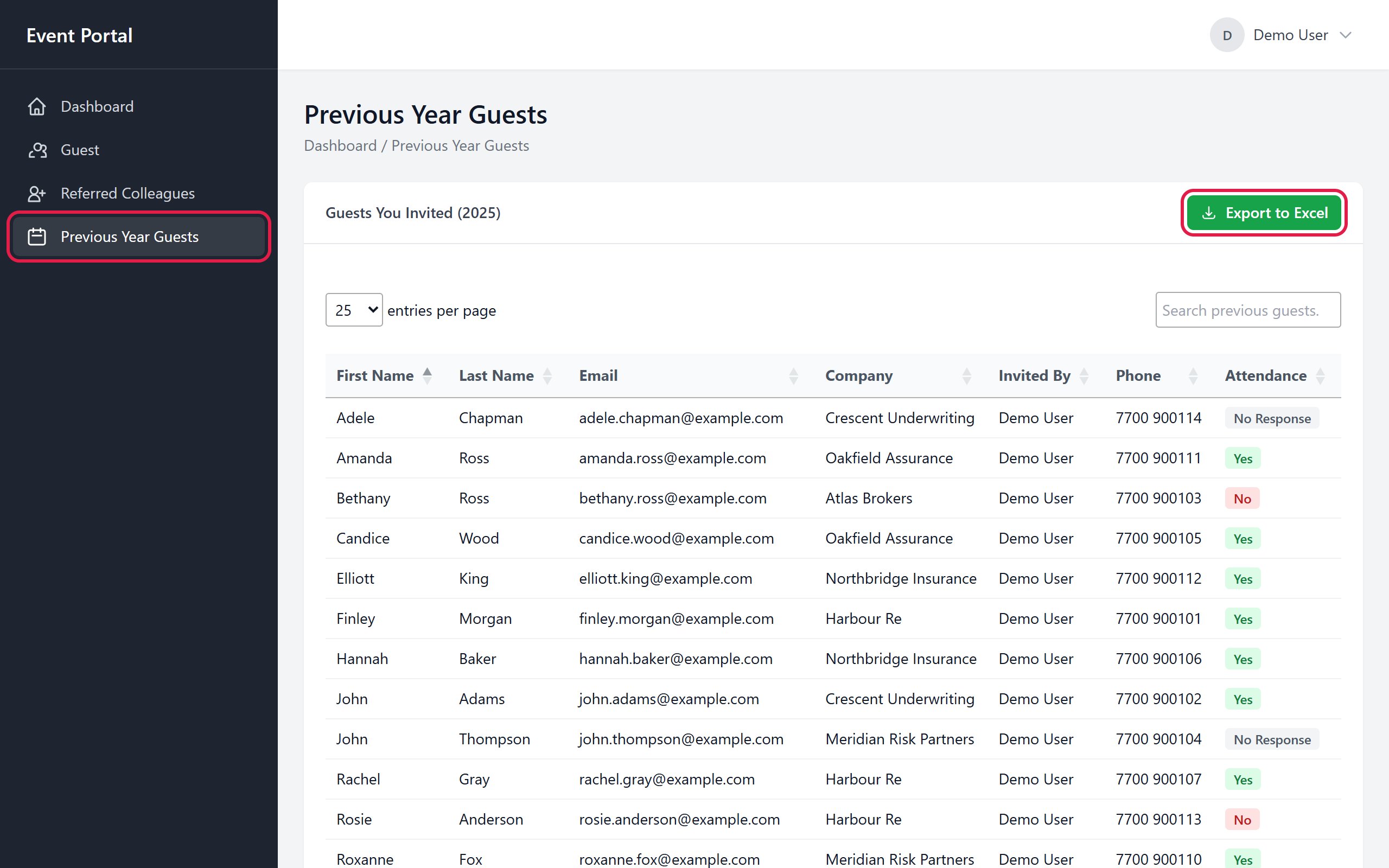
Previous Year Guests lists the guests you invited to last year's (2025) event, so you can invite them again. The portal matches them to you by your work email, so you only see your own guests.
Click Previous Year Guests in the left menu. Each row shows the guest's details and their answer last year: Yes, No or No Response.
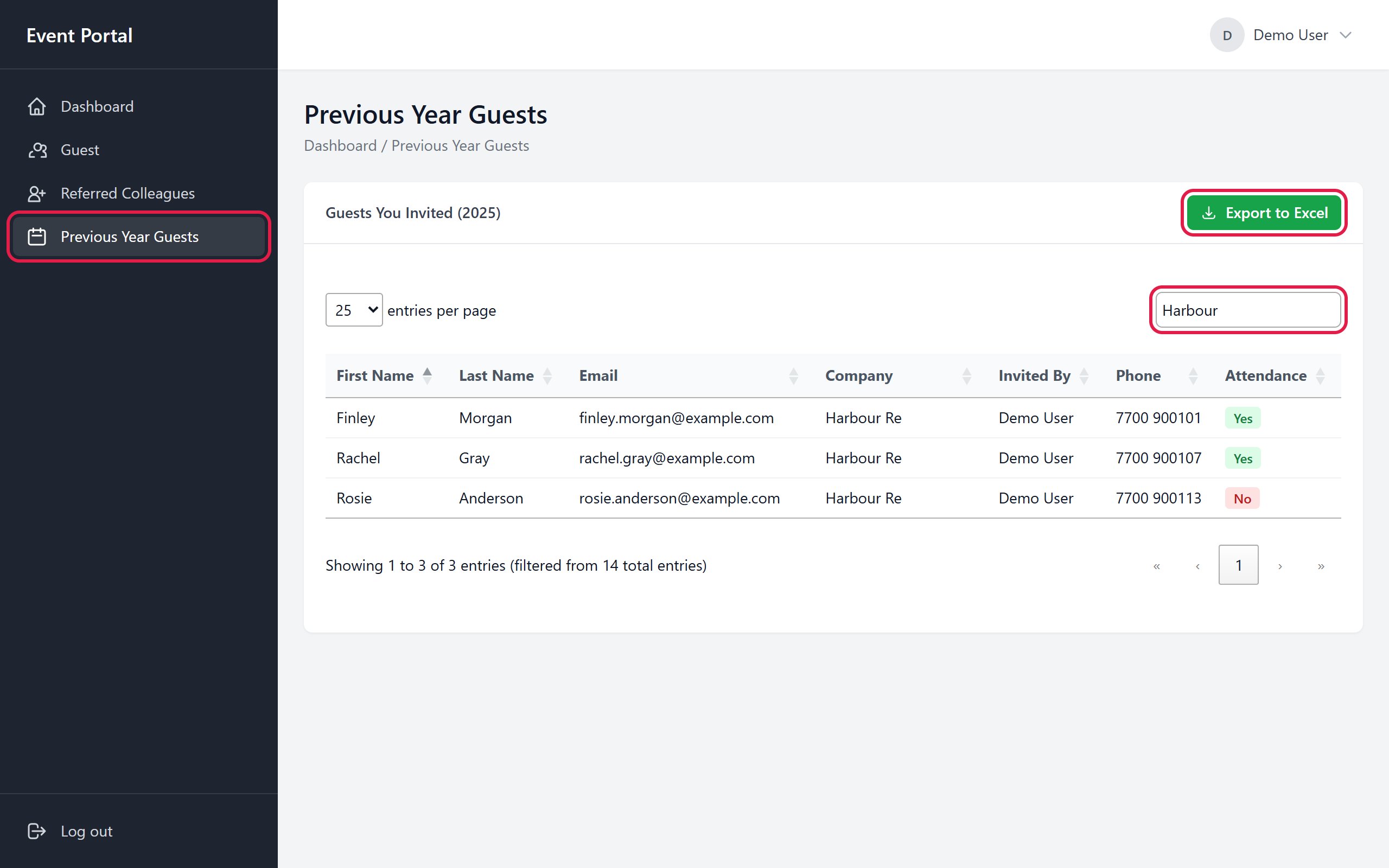
To find someone, type part of their name, email or company in the search box at the top right. The list narrows as you type.
Click Export to Excel to download the list as a file that opens in Excel. If you have typed a search, the file contains only the guests that match it.
Troubleshooting
Most problems show a message on screen. Find it below; if it is not listed, contact your portal administrator.
| Message or problem | What it means | What to do |
|---|---|---|
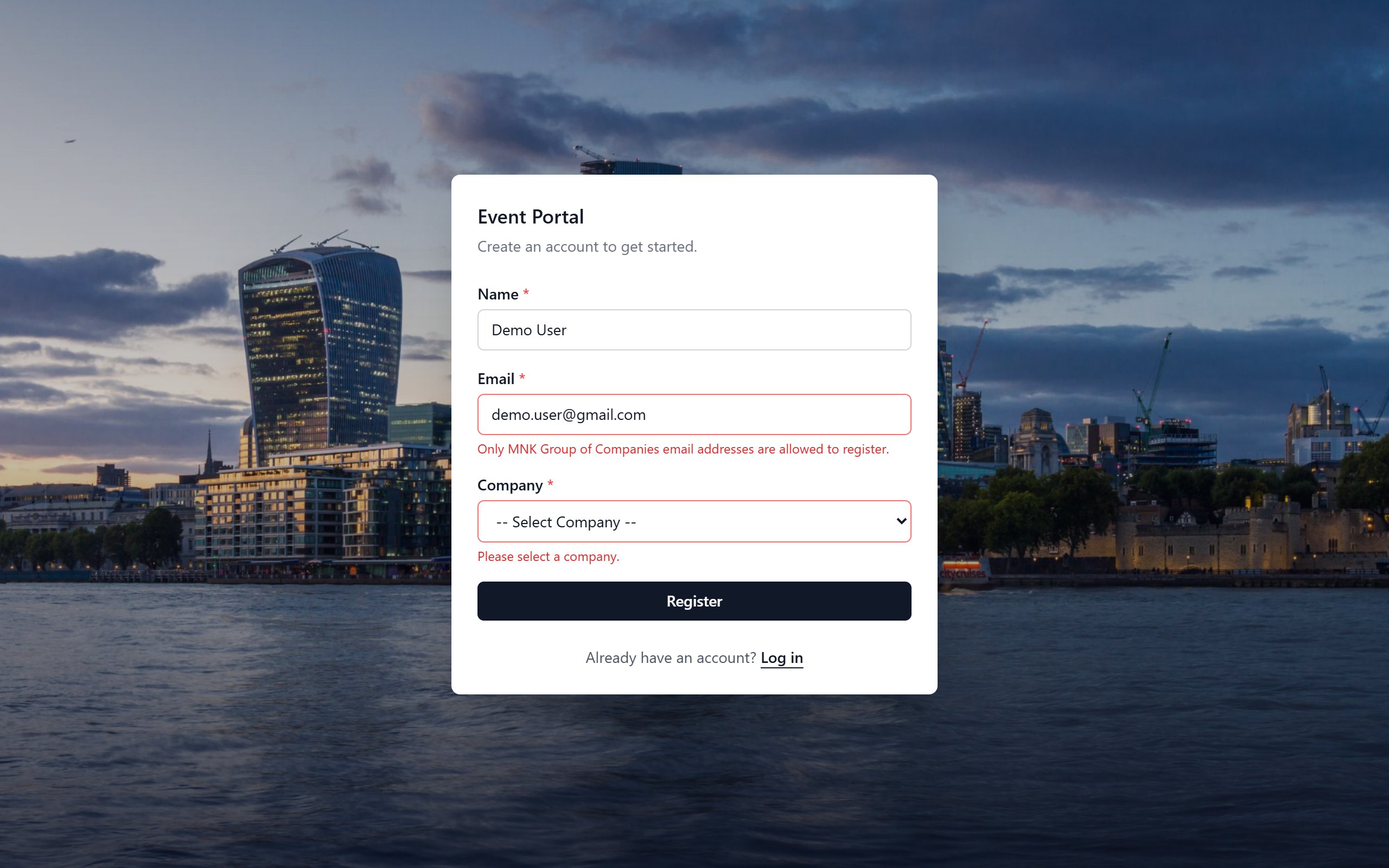
| Only MNK Group of Companies email addresses are allowed to register. | You registered with a personal or non-MNK email. | Register again with your MNK work email. |
| No portal account is linked to your email. | Your Microsoft account does not match any registered account. | Register first (section 1) with the same work email you use for Microsoft. |
| Microsoft sign-in was cancelled or denied. | The Microsoft page was closed or the sign-in was declined. | Click Sign in with Microsoft and try again. |
| Approval required (on the Microsoft page) | The portal has not yet been approved for your organisation. | Contact your portal administrator. |
| A guest with this email already exists. | That guest is already on the list, possibly added by a colleague. | Search your list; if they are not yours, check with the administrator. |
| Row number: … (after Bulk Upload) | That row of your file has a missing or invalid value. | Fix the row and upload the file again. |
| Previous Year Guests is empty | Your work email differs from the one used last year. | Contact your portal administrator. |
| Your session expired. Please refresh the page and try again. | The page was open for a long time. | Refresh the page and try again. |